

Photo Enhancer

The Img ai Photo Enhancer is for photos that are already the right size but look soft, noisy, or crushed by compression. It runs one automatic clarity pass, keeps the original width and height, and puts the source next to the result so you can decide whether the details still look true.

Same-size 1× outputJPG, PNG, WebPUp to 10 MBDrag to compare

Digital darkroom

Enhance your photo online

Upload one photo, run a restrained automatic clarity pass, and inspect every change before downloading.

Upload photo(0/1)

Automatic clarity pass

Refines softness, noise, and compression artifacts without changing the photo dimensions.

11 credits

Source

Output

Same size

11 credits for this runView pricing
Ready
Same-size 1×

Your enhanced photo will appear here

Upload a supported photo to check its dimensions and prepare a same-size enhancement.

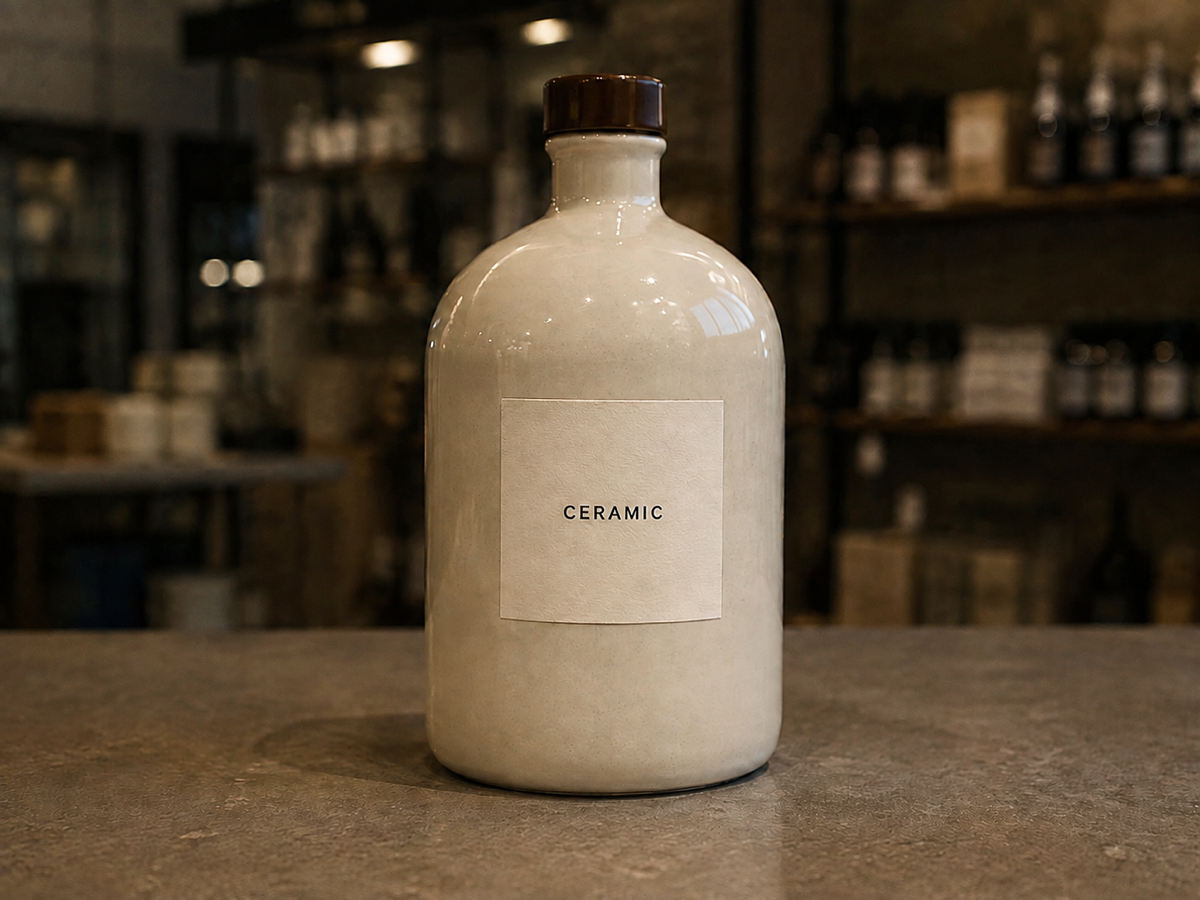
Concept example of the same ceramic bottle with clearer label edges after a same-size enhancement pass
Concept example of the same apparel listing with cleaner fabric edges after enhancement
Concept example of the same portrait with clearer hair and fabric after enhancement

The direct answer

What is a photo enhancer?

A photo enhancer applies a coordinated quality pass instead of asking you to tune sharpening, noise reduction, and artifact cleanup one slider at a time. It is useful when a photo is already the right size but looks softer or more compressed than the version you want to publish.

Enhancement is not evidence recovery. An automated pass can infer plausible edges and texture, but it cannot know details the camera never captured. That is why Img ai keeps the original in the same workspace and why you should review faces, type, and product edges before you download.

Jobs this Photo Enhancer is built for

Make a low-light product shot readable

Catalog photos taken under mixed store lighting often lose edge definition on labels, stitching, and reflective surfaces. Enhancement can make those commercial details easier to inspect at the original crop. It will not invent a lighting setup you never captured, and it is not a substitute for color-accurate retouching before a paid ad goes live.

Recover a compressed social export

A listing image that survived several saves can look blocky around type, logos, and fabric. A same-size pass is useful when you need a cleaner file for a marketplace crop without growing the pixel count. Compare lettering and repeating patterns before you replace the source; inferred texture can look sharper and still be wrong.

Prepare a scan you can actually read

A slightly soft scan of a print can become easier to transcribe or archive when edges and paper texture are clearer. Keep the original file. Enhancement does not restore missing emulsion, and faces in small prints can change enough that you should treat the result as a working copy, not a historical authority.

How to enhance a photo online

  1. Upload one photo

    Choose a JPG, PNG, or WebP file up to 10 MB. The longest side must be 2,048 pixels or less. Sign in before the file leaves your browser so the upload belongs to your Img ai account.

  2. Review credits and run Enhance

    The workbench shows an 11-credit cost and your remaining balance before the task starts. There is no denoise slider, face strength control, or scale picker on this page because those are not independent verified modes here. One automatic same-size pass is the operation you are buying.

  3. Compare, then download or keep the original

    Drag across the split view and check faces, product edges, type, and repeated textures at a useful zoom. Download only when the result still matches the source. Failed or interrupted tasks remain associated with your account in My Creations instead of silently starting a second charge.

Concept examples

What to inspect after a clarity pass

These owned concept pairs show the kinds of differences worth checking: low-light product edges, compressed listing texture, and a soft portrait. They are not measured Img ai customer results.

Concept example of a dimly lit ceramic bottle with a soft label before enhancement
Concept example of the same ceramic bottle with clearer label edges after a same-size enhancement pass
EnhancedOriginal

Low-light product detail

A dim product still can hide the type on a label. This pair is a concept illustration of the inspection you should do: does the bottle silhouette stay the same, and does the label remain readable without invented lettering?

Automatic same-size pass · JPG/PNG/WebP · 11 credits

Concept example generated for this page; not a measured customer result from Img ai.

Concept example of a compressed apparel listing photo with blocky fabric before enhancement
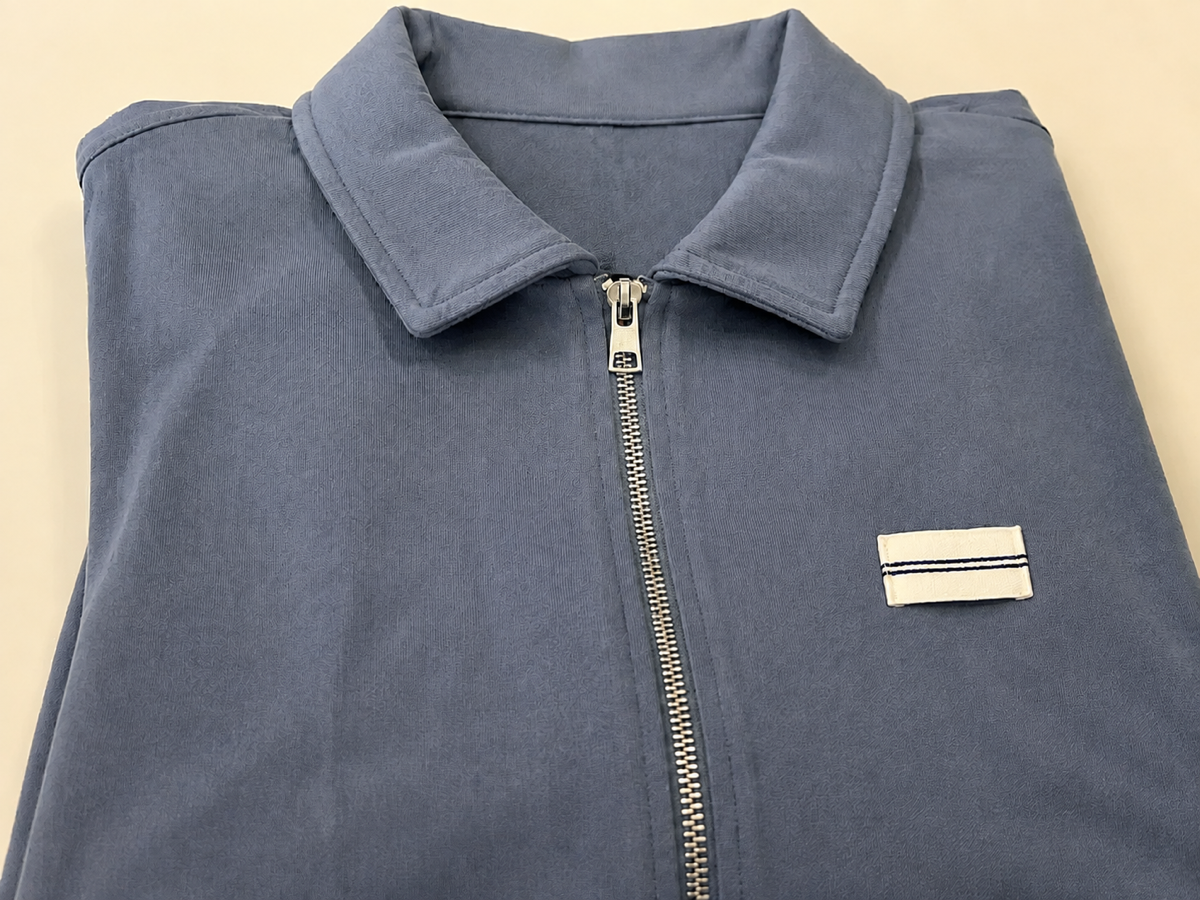
Concept example of the same apparel listing with cleaner fabric edges after enhancement
EnhancedOriginal

Compressed listing photo

Marketplace exports often smear weave, zippers, and small logos. Use the split view to confirm that a cleaner file did not rewrite a brand mark. This pair is labeled as a concept example, not a live production run.

Automatic same-size pass · longest side ≤ 2,048 px

Concept example generated for this page; not a measured customer result from Img ai.

Concept example of a slightly soft indoor portrait before enhancement
Concept example of the same portrait with clearer hair and fabric after enhancement
EnhancedOriginal

Soft everyday portrait

Mild softness in hair and clothing can become easier to read. Check eyes, teeth, jewelry, and skin texture before you keep a portrait. Identity can shift even when the crop stays the same.

Automatic same-size pass · compare faces before download

Concept example generated for this page; not a measured customer result from Img ai.

What this Photo Enhancer can improve

The tool exposes only the automatic operation the backend supports. Separate face, color, denoise, and deblur controls are absent because they are not independent verified modes in this workflow.

Perceived clarity

The pass is intended to make soft edges and small textures easier to read. It does not increase width or height, and it cannot prove that reconstructed detail existed in the camera file.

Noise and compression cleanup

Common sensor grain and blocky compression can look quieter after the pass. Severe damage, heavy motion blur, and crushed highlights often remain visible.

Balanced presentation

Subtle tonal cleanup can make an everyday photo feel less muddy. This is not a calibrated color-grading workflow and is not a print-proofing studio.

Photo Enhancer vs enlargement vs a manual editor

Choose the operation that matches the actual problem. Appearance, pixel count, and a targeted retouch are different jobs.

DecisionPhoto EnhancerEnlargementManual editor
Primary jobImprove overall visible qualityIncrease width and heightMake targeted creative corrections
Output sizeSame as the sourceChosen scale factorChosen by the editor
Control levelOne automatic passScale-factor choiceIndividual tools and masks
Best starting pointUsable but soft or compressed photoSmall image that needs more pixelsKnown issue such as exposure or object cleanup

Photos that benefit most

Product stills, phone photos, marketplace crops, and scanned prints can benefit when the source is recognizable but visibly soft or compressed. A cleaner original with moderate detail gives the pass more reliable structure to work from.

Limits you should know

  • Missing information cannot be verified or perfectly restored. If the camera never captured an edge, the result is an inference.
  • Faces can change, especially when they are small, blurred, or heavily compressed. Compare identity-sensitive features before you publish.
  • Text, logos, jewelry, and repeating patterns need close comparison. Sharper is not the same as accurate.
  • This page does not enlarge the file. If you need more pixels, use the Topaz Image model page, which exposes verified scale factors.

Img ai vs Pixelcut vs Fotor

Compare these photo enhancers by the job they ask you to finish, not by unsupported claims about universal quality. Public product pages were reviewed on 6 September 2026.

Img ai

A tracked same-size clarity pass for a photo you already intend to keep at its current crop.

Upload one supported file, confirm 11 credits, run a single automatic pass, inspect a split comparison, and download from the same account history used by the rest of Img ai.

Fixed Auto mode, a 2,048-pixel longest-side limit, and no separate face, denoise, or enlargement controls on this page.

Open the Img ai tool

Pixelcut

Enhancement that sits inside a broader image editor with adjacent tools.

Pixelcut describes photo enhancement as part of a larger editing workspace rather than a single-purpose task page.

A wider editor adds more decisions. Confirm current upload rules and output review on Pixelcut before treating it as a drop-in replacement.

Public product page

Fotor

A general one-click photo enhancement entry point.

Fotor presents an AI image enhancer with before-and-after examples and an upload flow aimed at all-around correction.

A general enhancer is less explicit about same-size versus enlargement. Check whether the output dimensions match the job you actually have.

Public product page

Privacy, rights, and responsible use

Upload only photos you own or are authorized to process. Img ai associates the tracked task with your account and keeps the result available in My Creations. Review the privacy policy before sending sensitive material.

File and credit specifications

Input
JPG, PNG, WebP
Maximum file
10 MB
Maximum side
2,048 pixels
Output size
Same dimensions
Task cost
11 credits
History
My Creations

Photo Enhancer FAQ

What does the Img ai Photo Enhancer change?

It applies one automatic correction intended to improve visible clarity, soften noise, and reduce compression artifacts. The output keeps the original pixel dimensions so the job stays on appearance rather than enlargement.

Will this photo enhancer increase resolution?

No. This page returns the same width and height as the source. If you specifically need a 2× or 4× file, use the Topaz Image model page, which exposes those scale factors.

Can it fix a badly blurred photo?

Not reliably. Mild softness can become easier to inspect. Severe motion blur, missed focus, tiny faces, destroyed text, or clipped highlights cannot be verified or perfectly reconstructed.

Does enhancement preserve faces exactly?

It aims to keep the source recognizable, but reconstructed facial detail can still change. Compare eyes, teeth, hairlines, jewelry, and other identity cues before you use a portrait.

Which files can I enhance?

Upload one JPG, PNG, or WebP file up to 10 MB. The longest side must be 2,048 pixels or less. Sign in so the upload, task, and download stay on your Img ai account.

How many credits does photo enhancement use?

Each Photo Enhancer task uses 11 credits. The workbench shows that cost and your remaining balance before you start. Check Pricing for current plans. Results appear in My Creations.

Sources and methodology

Product capability, public competitor workflow, and first-party technical constraints were reviewed on 6 September 2026. Claims are limited to visible controls and documented behavior.

Move to the workflow that matches what the source actually needs.