
Photo Restoration

Img ai Photo Restoration is for old or damaged photographs that still have a usable scan. Upload one file, run a conservative automatic repair, compare the 1K result with the untouched source, and download only what still agrees with the original evidence.

Archival repair

Restore your photo online

Upload one old or damaged photo, run a conservative automatic repair, and inspect every change before downloading.

Upload photo(0/1)

Conservative repair

Repairs scratches, fading, noise, and mild softness. Returns a 1K result at an automatic aspect ratio.

10 credits

Source

-

Output

1K auto

10 credits for this runView pricing
Ready
1K auto

Your restored photo will appear here

Upload a supported photo to check its dimensions and prepare a conservative restoration.

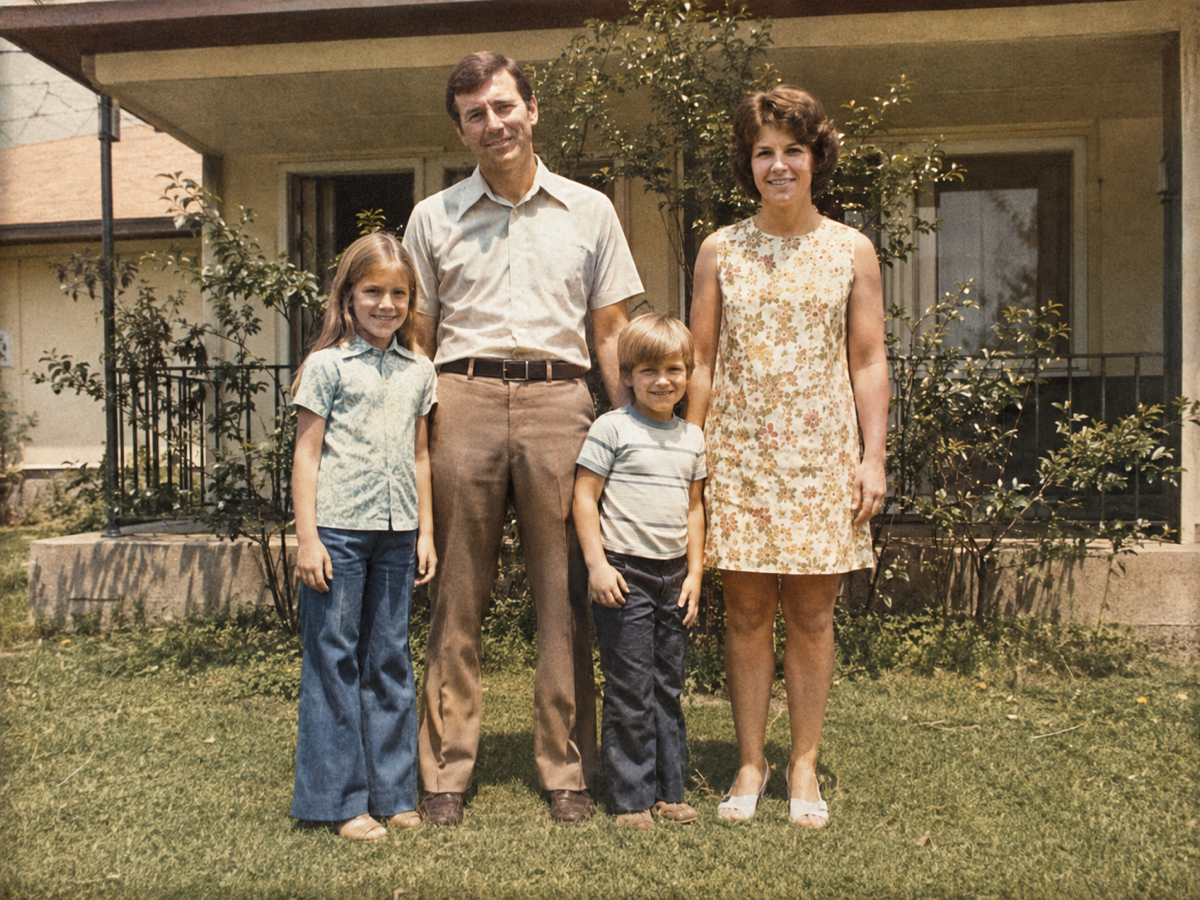
Concept example of the same family photograph after conservative photo restoration
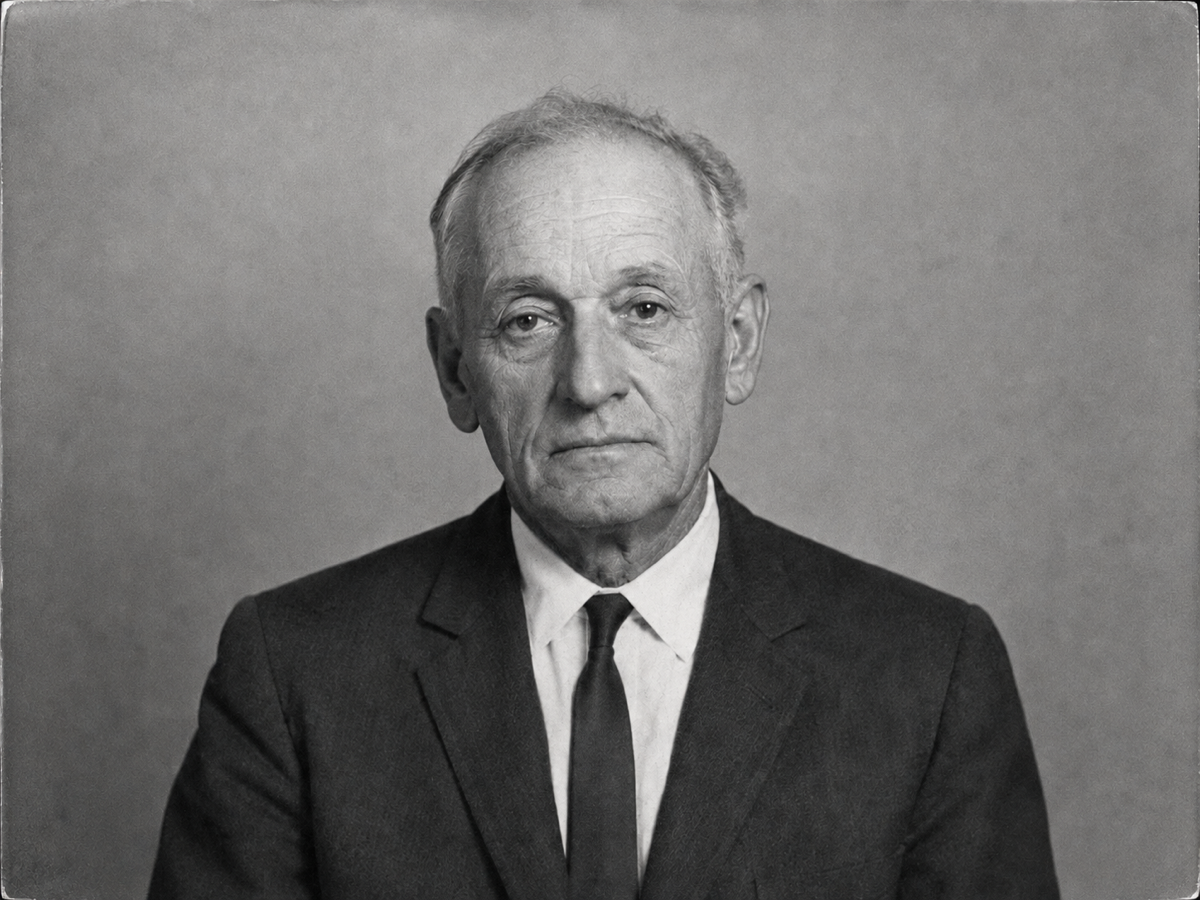
Concept example of the same portrait with clearer tonal range after photo restoration
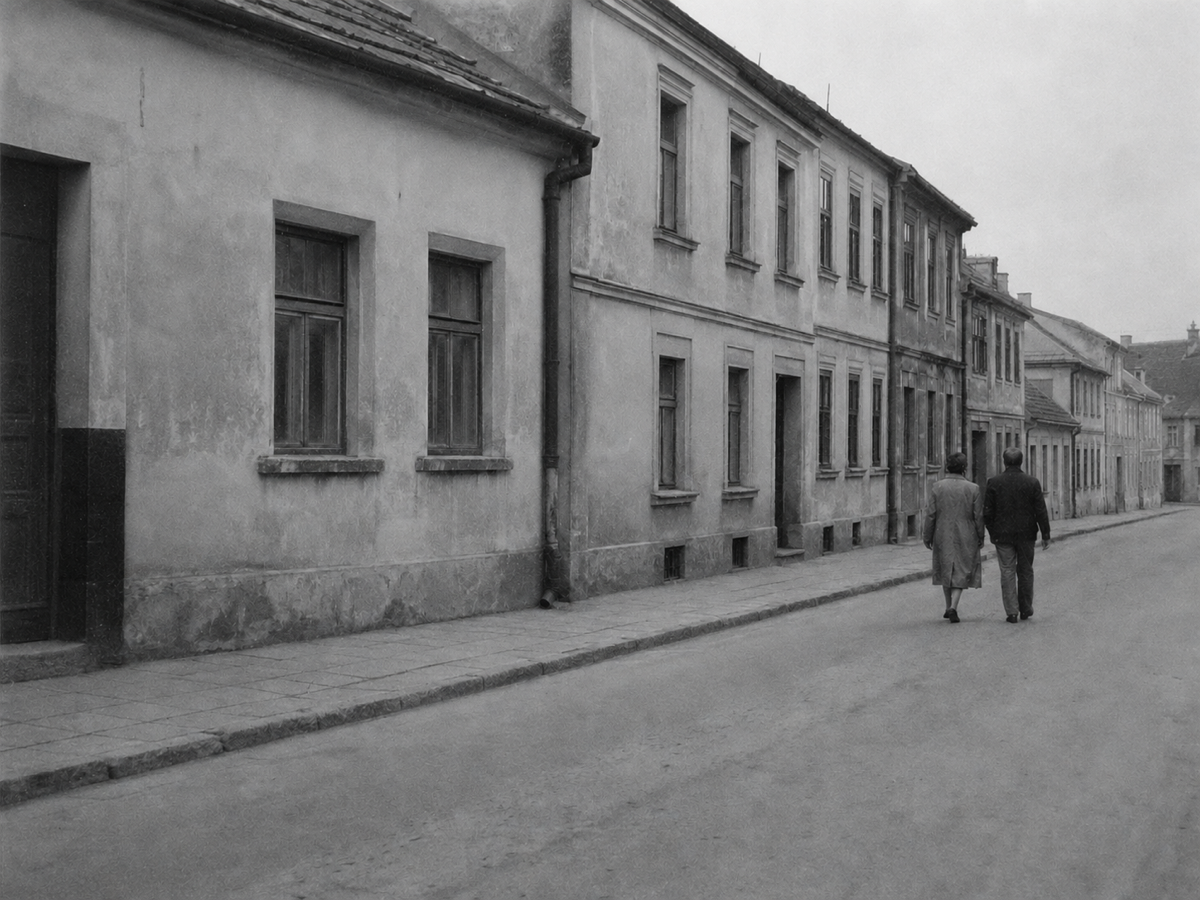
Concept example of the same scan with reduced surface marks after photo restoration

The direct answer

What is photo restoration?

Photo restoration repairs visible damage on an old or worn photograph: scratches, dust, fading, noise, and mild softness. It is a viewing derivative of a scan, not a forensic reconstruction of the original print.

Img ai keeps the untouched source in the same workspace because inferred detail can look complete without being historically true. Review faces, inscriptions, and objects before you download. That inspection is part of photo restoration, not an optional extra.

Jobs this Photo Restoration tool is built for

Make a family print readable again

A group photograph from a reunion, school, or wedding often carries dust, fading, and small surface marks that hide faces and clothing. Photo restoration can reduce that visible wear so the people in the frame are easier to inspect. Check every face separately. Small features are the first place an automatic reconstruction can drift away from the source.

Recover a faded monochrome or color print

Age flattens contrast and washes pigment until the subject sits in a gray fog. A restrained photo restoration pass can restore tonal separation while keeping the original black-and-white, sepia, or color state. It does not invent a historical palette. If you want interpreted color, that is a different decision and a different tool.

Clean a scratched or noisy scan

Narrow scratches, speckle, scanner noise, and compression blocks are common on archival scans. Photo restoration can make those distractions less prominent when the damage is localized. Large tears, missing corners, and illegible handwriting still need human judgment or a better capture of the print.

How to restore an old photo online

  1. Scan or photograph the original well

    Use even light, avoid glare, and keep the print as straight as possible. Keep an archival copy of that scan. Photo restoration works from the evidence you upload, so a crooked, reflective, or tiny capture limits what can be repaired.

  2. Upload one supported photo and confirm credits

    Choose a JPG, PNG, or WebP file up to 5 MB, with each side from 256 to 4,096 pixels and no more than 16 megapixels. Sign in so the upload belongs to your Img ai account. The workbench shows a 10-credit cost and your remaining balance before the task starts. There is no scratch slider, face switch, or colorize control because those are not independent verified modes here.

  3. Compare, then download or keep the original

    Drag across the split view and inspect faces, hands, inscriptions, uniforms, jewelry, and repeating patterns. Download only when the restored file still agrees with the source. Failed or interrupted tasks stay on your account in My Creations instead of silently starting a second charge.

Concept examples

What to inspect after photo restoration

These owned concept pairs show family prints, faded portraits, and scratched scans. They are not measured Img ai customer results. Use them as a reminder of the comparison you should run on your own file.

Concept example of a faded multi-person family photograph before photo restoration
Concept example of the same family photograph after conservative photo restoration
RestoredOriginal

Family print with age wear

A group print is useful for judging identity. After photo restoration, confirm that every face, hairstyle, and garment still matches the source. This pair is a concept illustration of that inspection, not a measured customer result.

Automatic conservative repair · JPG/PNG/WebP · 10 credits · 1K output

Concept example generated for this page; not a measured customer result from Img ai.

Concept example of a faded monochrome portrait before photo restoration
Concept example of the same portrait with clearer tonal range after photo restoration
RestoredOriginal

Faded studio portrait

Fading hides edges and facial structure. A conservative pass can improve legibility without turning the print into a modern color photograph. Compare eyes, hairline, and clothing grain before you keep the file.

Retains original color state · no colorization on this page

Concept example generated for this page; not a measured customer result from Img ai.

Concept example of a scratched and dusty photograph scan before photo restoration
Concept example of the same scan with reduced surface marks after photo restoration
RestoredOriginal

Scratched archival scan

Surface marks are the most practical target for automatic photo restoration. Broad missing regions are not. Use the split view to confirm that a cleaner file did not invent text, medals, or architecture that the scan never held.

Automatic conservative repair · inspect every restored area

Concept example generated for this page; not a measured customer result from Img ai.

What this Photo Restoration pass can repair

The tool exposes only the automatic operation the backend supports. Separate scratch, face, denoise, and colorize controls are absent because they are not independent verified modes in this workflow.

Scratches, dust, and small creases

The automatic pass can reduce narrow surface marks and isolated dust without asking you to paint a mask. Broad tears or missing corners are less predictable and should be reviewed carefully.

Noise, compression, and mild softness

Digitized prints often combine scanner noise, JPEG blocks, and soft edges. Photo restoration can make those distractions less prominent, but it cannot prove details that were never captured.

Fading and weak tonal separation

A restrained correction can improve legibility in faded prints while being instructed to retain the original black-and-white, sepia, or color state. It does not intentionally colorize monochrome history.

Photo Restoration vs photo enhancement vs manual retouching

Choose the operation that matches the actual problem. Physical damage, softness in an intact file, and pixel-level human control are different jobs.

DecisionPhoto RestorationPhoto EnhancerManual retouching
Primary jobRepair visible wear on an old or damaged scanImprove clarity on an intact photoControl every local correction by hand
Output1K automatic aspect ratioSame width and height as the sourceChosen by the editor
Control levelOne conservative automatic passOne same-size clarity passMasks, layers, and reversible edits
Best starting pointScratches, fading, dust, or localized damageA usable file that looks soft or compressedSevere tears, missing regions, or legal archives

Historical authenticity and limits

A restored photo can be clearer and more complete-looking without being documentary proof. When pixels are destroyed, some visible detail is inferred rather than recovered historical fact. That matters for faces, medals, uniforms, handwriting, dates, architecture, and objects with family or legal meaning.

Preserve the untouched scan, label generated derivatives, and ask relatives or an archivist to compare uncertain details. This tool is instructed to retain the original color state.

  • Missing information cannot be verified or perfectly restored. If emulsion, ink, or pixels are gone, visible detail may be inferred rather than recovered historical fact.
  • Faces can change, especially when they are small, scratched, or heavily compressed. Compare eyes, teeth, hairlines, jewelry, and relationships between people before you share a portrait.
  • Text, medals, uniforms, dates, and architecture need close comparison. A cleaner file is not documentary proof.
  • This page does not colorize black-and-white photos and does not enlarge beyond the 1K result. Adjacent Img ai tools handle those jobs when you choose them on purpose.

Privacy, storage, and deletion

Upload only images you have the right and consent to process. Signed-in restoration tasks and results can appear in My Creations so a task can be recovered after a temporary connection problem.

The current storage backend has no automatic expiry for uploaded or generated image objects. Delete in My Creations calls the authenticated creation-delete endpoint and removes the task record from account history. It does not delete the underlying image object or a provider copy. Review the privacy policy before uploading especially sensitive family material.

Img ai vs MyHeritage vs VanceAI

Compare these photo restoration products by the job they ask you to finish, not by unsupported claims about universal quality. Public product pages were reviewed on 6 September 2026.

Img ai

A tracked conservative photo restoration pass for one old or damaged scan you intend to inspect against the original.

Upload one supported file, confirm 10 credits, run a single automatic repair, inspect a split comparison, and download from the same account history used by the rest of Img ai.

Fixed conservative mode, a 1K automatic-aspect result, and no separate scratch, face, or colorize controls on this page.

Open the Img ai tool

MyHeritage

Photo tools bundled with a genealogy product, including enhancement, colorization, and related family-history features.

MyHeritage presents photo repair inside a family-tree workflow rather than as a standalone restoration workbench with a posted per-task credit cost.

The photo suite is useful if you already keep family research there. Confirm current plan bundling and export rules on MyHeritage before treating it as a drop-in replacement.

Public product page

VanceAI

A web restoration suite with separate modules for restore, colorize, denoise, and upscale.

VanceAI describes old-photo restoration as one module among several processing steps you can chain, with credit packs or a subscription.

More knobs can help a batch workflow. They also make it easier to mix repair, color interpretation, and enlargement in one pass. Confirm which step you are buying on each run.

Public product page

Price, output, and responsible use

One photo restoration uses 10 credits and returns a 1K result at an automatic aspect ratio. Processing may reconstruct plausible visual detail, so the result is not a forensic record, identity guarantee, or substitute for professional conservation. By using the tool, you confirm that your upload complies with the terms of service.

File and credit specifications

Input
JPG, PNG, WebP
Maximum file
5 MB
Source size
256-4,096 px each side, ≤ 16 MP
Output
1K, automatic aspect ratio
Task cost
10 credits
History
My Creations

Keep each operation explicit. Repair damage first, then choose enhancement, object removal, or a new generated image only when the source and intended use call for it.

Photo Restoration FAQ

What does Img ai Photo Restoration repair?

It can reduce visible scratches, dust, small creases, fading, noise, compression artifacts, and moderate softness in an old photograph. Results depend on the source: a clear scan with localized wear is more reliable than a tiny file with large missing areas.

Does photo restoration colorize black-and-white photos?

No. This restoration path is instructed to retain the source color state so repair and color interpretation remain separate decisions. Do not treat a restored monochrome file as a historically exact color reconstruction.

Can photo restoration restore faces exactly?

No automated method can guarantee exact recovery when facial pixels are blurred, compressed, scratched away, or missing. Check eyes, teeth, hairlines, jewelry, badges, and relationships between people against the untouched original.

How many credits does one photo restoration use?

One restoration uses 10 credits. The workbench shows that cost and your remaining balance before submission. The existing task system avoids restarting a paid job when a connection is interrupted. Check Pricing for current plans. Results appear in My Creations.

Which photos work best for photo restoration?

Portraits, family prints, school photographs, wedding pictures, and documentary snapshots with visible but localized damage are practical candidates. Large tears, illegible writing, severe motion blur, and extremely tiny faces usually need a better scan or manual retouching.

If I delete a restoration in My Creations, is the file gone?

Deleting in My Creations calls the authenticated creation-delete endpoint and removes the task from your account history. It does not delete the underlying image object or a provider copy. There is no automatic expiry for uploaded or generated image objects. Review the privacy policy before uploading sensitive family material.

Sources and methodology

Product capability, public competitor workflow, and first-party technical constraints were reviewed on 6 September 2026. Claims are limited to visible controls and documented behavior. Restoration literature distinguishes structured damage such as scratches from unstructured degradation such as blur and fading. See Bringing Old Photos Back to Life.