
Product shadows on IMG AI

AI Shadow Generator

The IMG AI shadow generator places a believable, direction-aware shadow under a product so it looks like it is really standing on a surface. Upload one product photo, pick the character of the shadow, and the original stays beside the result so you can judge the change before you keep it.

1K render · same framing20 creditsUpdated September 2026

Shadow generator

Ground a product photo with a realistic shadow

Upload one product image, choose the character of the shadow, run a single pass, then compare it against the original.

Upload photo(0/1)

Automatic shadow pass

One guided pass over the whole frame. No manual shadow layer, batch queue, or per-object brush, because this backend does not expose them.

20 credits

Source

—

Output

1K render · same framing

20 credits for this runView pricing
Ready
Concept preview · not a data record

Your shadowed product photo will appear here

Upload a product JPG, PNG, or WebP between 256 and 4,096 pixels per side to check it and prepare a shadow pass.

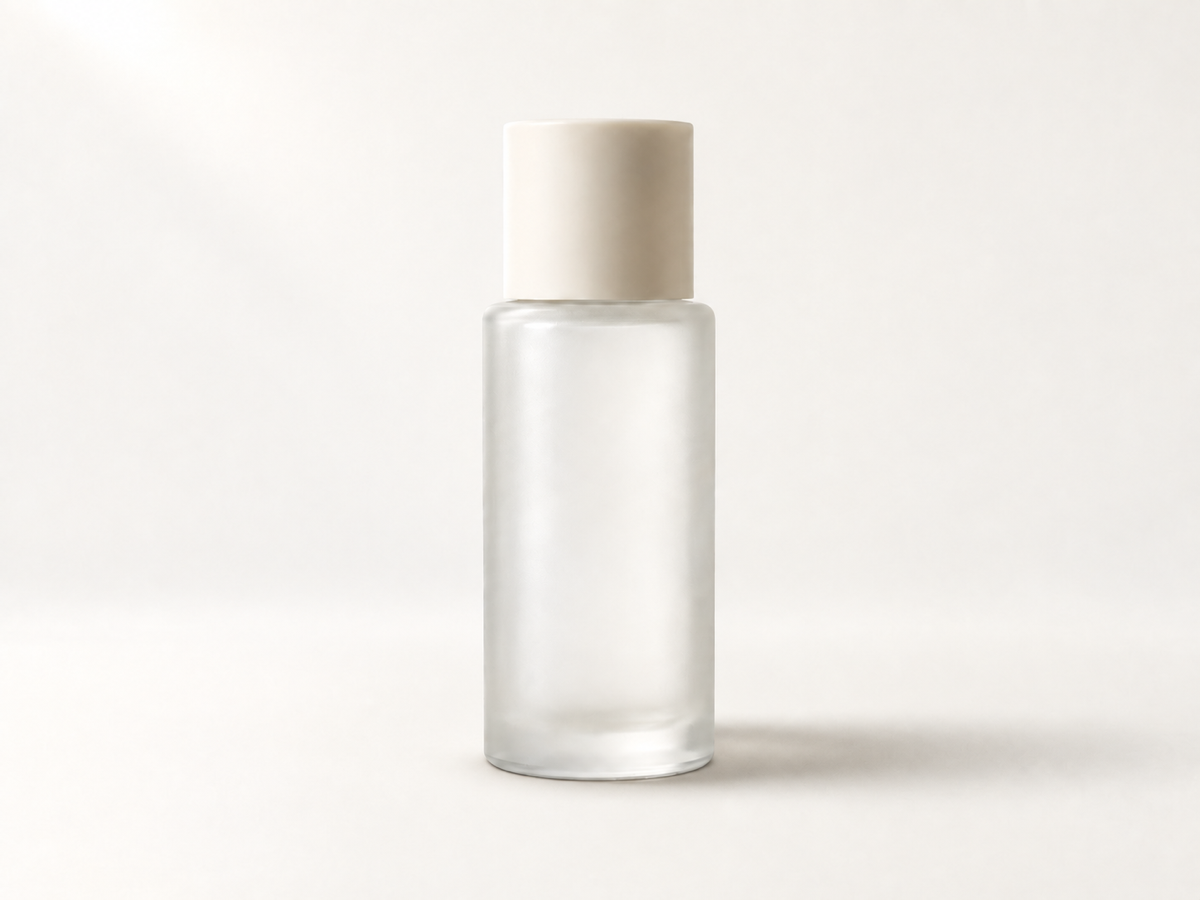
The same skincare bottle with a soft natural contact shadow that grounds it on the surface
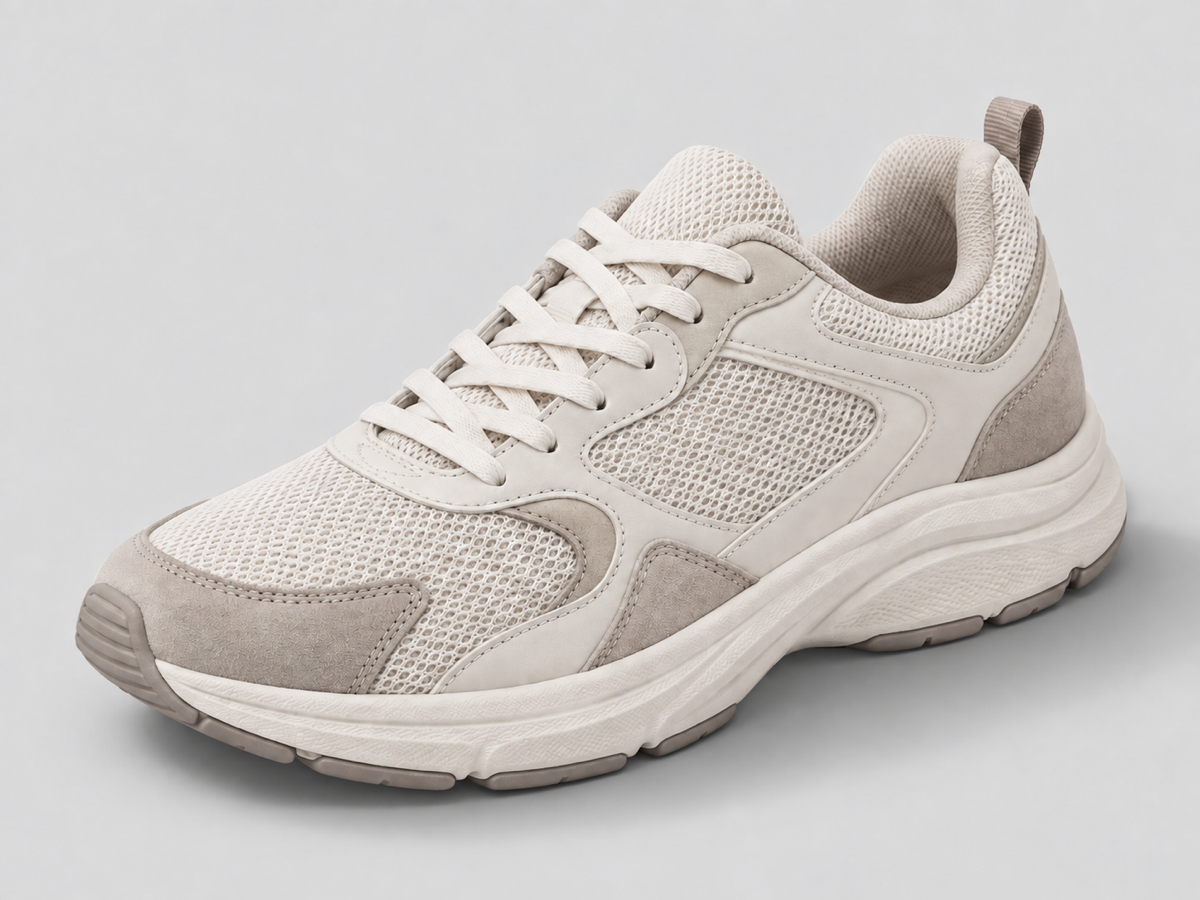
The same sneaker with an even soft studio shadow spreading around its base
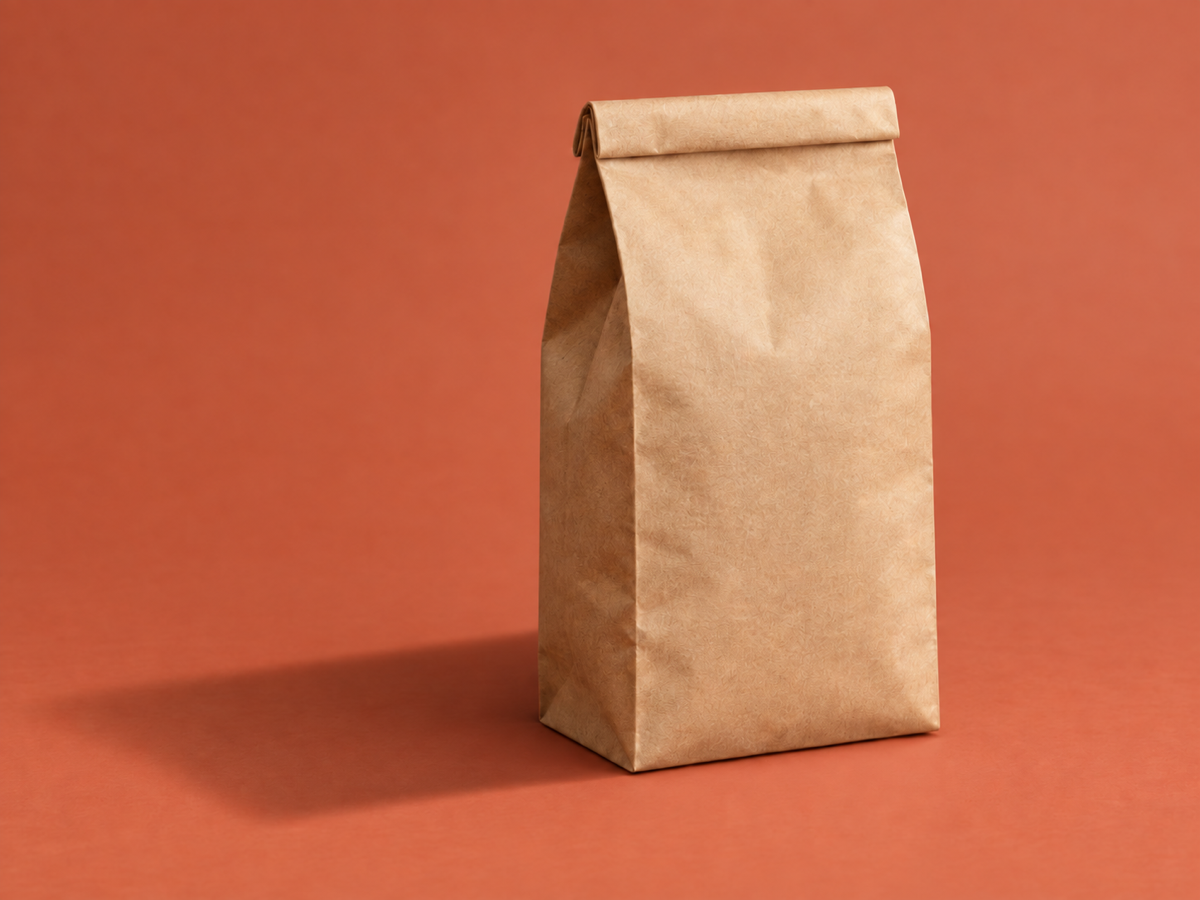
The same coffee bag with a strong directional cast shadow stretching across the surface

Concept examples, not measured customer results.

The direct answer

What is an AI shadow generator?

An AI shadow generator adds a cast shadow to a product photograph and blends it into the existing scene, so an item that looks pasted or floating reads as sitting on a real surface. E-commerce listings, ad creatives, and catalog images are usually shot or cut out on a plain field with no shadow; the eye reads that missing contact as "not really there". A shadow restores the grounding cue that makes the product look physical.

A useful shadow has to match the light that is already in the photo. Its direction, softness, opacity, and length all depend on where the light comes from and how far the product sits above the surface. IMG AI runs one guided pass with a fixed instruction, aims to leave the product, its label, its colors, its framing, and the background as they are, and adds only the shadow you asked for. Because the frame is re-rendered, fine detail can still shift, so the result is checked on a before-and-after view.

That is different from dropping a blurred black ellipse under a cut-out in an editor. A generated shadow curves around the silhouette, darkens where the product meets the surface, and fades with the real light instead of appearing as a flat, symmetrical blob that ignores the scene.

Jobs this shadow generator is built for

Ground a product cut-out for a listing

Marketplace galleries often reject or bury images that look unreal. When a product is cut out onto white with no shadow, adding a soft contact shadow makes the item read as a photographed object standing on a surface, which is what buyers and ad platforms expect to see.

Rescue a flat or floating hero shot

A photo taken with a fill flash or on a lightbox can lose all of its shadow, so the product appears to hover. A direction-aware, soft shadow restores the sense of weight and contact without reshooting the item or rebuilding the scene.

Build a consistent catalog

When every product in a set gets the same shadow character, a mixed batch of supplier photos starts to look like one coherent brand catalog. Pick one style and apply it across the set before you compose the storefront or the ad.

How to add a shadow to a product photo

  1. Upload one product photo

    Sign in, then add a single JPG, PNG, or WebP up to 10 MB with each side between 256 and 4,096 pixels and no more than 16 megapixels. IMG AI checks the file in the browser and again on the server, so a mislabelled or truncated image is rejected before anything is charged.

  2. Choose a shadow style, then run one pass

    Pick the character you want: a natural contact shadow, a clean studio shadow, a very soft one, a dramatic long cast, a floating offset, or a glossy floor reflection. The choice changes the instruction the model follows, not a cosmetic slider. The workbench shows the fixed 20-credit cost and your remaining balance before submission.

  3. Compare, then download or discard

    Drag the divider across the result and check the contact point, the shadow direction, and the product edges against the original. Download when it looks right. If the connection drops or you refresh the tab, IMG AI recovers the same task identity instead of starting a second paid job.

Concept examples

What to inspect after a shadow pass

These owned concept pairs show the three product types people ground most: a bottle, a sneaker, and a bag. They are not measured IMG AI customer results.

Concept product photo of a skincare bottle on a plain surface with no visible shadow, so it appears to float
The same skincare bottle with a soft natural contact shadow that grounds it on the surface
ShadowedOriginal

Skincare bottle grounded with a natural shadow

The first thing to inspect is the contact point: the shadow should be darkest and tightest where the base meets the surface, then fall off smoothly. The bottle, its label shape, its highlights, and the framing must be identical to the original.

Natural style · 1K render · 20 credits

Concept example generated for this page; not a measured customer result from IMG AI.

Concept studio product photo of a single sneaker on a seamless backdrop with no shadow
The same sneaker with an even soft studio shadow spreading around its base
ShadowedOriginal

Sneaker with a clean studio shadow

A studio shadow should spread evenly around the base with no harsh edge and no second shadow. Check that the outsole, laces, and stitching are not redrawn and that the backdrop color is unchanged.

Studio style · framing preserved · no product changes

Concept example generated for this page; not a measured customer result from IMG AI.

Concept product photo of a coffee bag standing on a colored backdrop with almost no shadow
The same coffee bag with a strong directional cast shadow stretching across the surface
ShadowedOriginal

Coffee bag with a dramatic cast shadow

A long cast shadow adds drama but is the easiest place to slip. Confirm the shadow leaves the base in the same direction as the existing light, keeps a defined contact edge, and stays on the surface instead of covering the product.

Dramatic style · light direction preserved

Concept example generated for this page; not a measured customer result from IMG AI.

What this shadow generator actually does

The page exposes one automatic shadow pass with a named style. There is no manual shadow layer panel, batch queue, or per-object mask because this backend does not expose them.

Direction-aware, one-pass shadow

One pass adds a shadow that follows the light already photographed in the scene, rather than a flat black shape pasted under a cut-out. The pass aims to keep the product, its packaging text, its colors, and the background intact, though a full-frame re-render can still shift fine detail, which is why the result is shown against the original.

Six named shadow styles

You can describe the result you want: natural contact, even studio, very soft, dramatic long cast, floating offset, or a glossy floor reflection. Each style is a specific instruction to the model, not a filter preset.

Reviewable and recoverable output

The original product photo and the shadowed result sit in one comparison view, and the finished task stays in My Creations, so a dropped connection recovers the same paid run instead of charging twice.

AI shadow generator vs manual photo editor vs mockup template

These three approaches answer the same need in different ways: a guided single-pass shadow inside an image account, a manual shadow drawn by hand in an editor, and a template tool that drops a product into a prebuilt scene. Each has a different cost in time, skill, and control.

IMG AI

One tracked shadow pass inside the same account, credits, and history you already use for the rest of IMG AI.

Sign in, upload one JPG, PNG, or WebP up to 10 MB, choose a shadow style, confirm 20 credits, run a single pass, drag the before/after comparison, and download. The run is recoverable and appears in My Creations.

No manual shadow controls, no multi-layer compositing, and a 1K-class render rather than a full-resolution export.

Open the IMG AI tool

Manual photo editor

Full control when you want to draw, warp, and tune a shadow by hand, layer by layer.

Cut the product out, add a shadow layer, blur it, warp it to the perspective, set opacity, and blend modes, then repeat for every image in the set.

The result depends on the operator skill, takes minutes per image, and is hard to keep consistent across a large catalog.

Mockup template

A fast way to place artwork or a label into a prebuilt scene that already includes lighting and a shadow.

Pick a template, drop the artwork onto the smart object, and export. The scene, camera angle, and shadow are fixed by the template.

It cannot add a shadow to your own product photograph, and it forces every item into the same prebuilt composition and angle.

Pick by what you actually have: use IMG AI when you already have a product photo that needs grounding, a manual editor when you need layer-level control on a few hero images, and a mockup template when you are placing artwork rather than photographing a product.

Photos that shadow well

The strongest inputs have one clear light direction, a product that is reasonably separated from its background, and a surface that the shadow can fall on. A plain studio backdrop, a counter, or a seamless sweep all give the model a believable plane to work from.

Limits you should know

  • The pass re-renders the whole frame, so a very detailed product can shift slightly. Inspect labels, fine text, and thin edges on the compare slider before you publish.
  • It adds a shadow; it does not remove an existing one, replace a background, or change the surface the product stands on.
  • A scene with no visible light direction gives the model less to match, so the shadow can look generic. Photos with a clear key light give the strongest result.
  • Transparent, glossy, or highly reflective products are hard to ground convincingly; the shadow can read correctly while the product reflections still look cut out.
  • The output is re-rendered at a 1K-class size with the same framing, so pixel dimensions are normalized rather than matched to a large source file.

Add a shadow vs remove a background vs replace a background vs product photography

Four related jobs look similar in a search box. Pick by what is wrong with the file in front of you.

The problemAI Shadow GeneratorAI Blur BackgroundAI Background ChangerProduct Photography
Best forA product photo that looks flat or floatingA photo whose background distracts from the subjectA product that needs a new scene behind itA generative studio scene built from a reference
What changesA realistic shadow is added; the product and background stay putThe background softens; the subject stays sharpThe whole background is replaced behind the productA new scene, lighting, and composition are generated
What it will not doRemove an existing shadow or replace the backgroundKeep a literal scene or add a shadowGround the product with a matched contact shadowGuarantee the exact original product pixels
Cost on IMG AI20 credits5 credits20 credits20 credits

Privacy, rights, and responsible use

Upload only photos you own or are authorized to process. Adding a shadow changes the visible lighting of a product image, so do not use this tool to misrepresent a product, an event, or a person, and follow the advertising rules that apply where you publish. Img ai keeps the tracked task on your account and the result in My Creations. Read the privacy policy before uploading personal material.

File and credit specifications

Input
JPG, PNG, WebP
Maximum file
10 MB
Side range
256–4,096 px
Maximum area
16 megapixels
Shadow styles
Natural, studio, soft, dramatic, floating, reflection
Output
One 1K-class shadowed product image
Task cost
20 credits
History
My Creations

AI Shadow Generator FAQ

What does an AI shadow generator actually do?

It adds a realistic cast shadow to a product photograph and blends it into the existing scene. The shadow is built from the product silhouette, matched to the light direction already in the photo, and given a contact edge where the product meets the surface. Use it when a product looks pasted or floating because its original shadow is missing or too weak.

Will adding a shadow change my product?

The instruction keeps the product, its packaging text, its colors, its position, its scale, and the background as they are, and adds only the shadow. Because the model re-renders the frame at a 1K-class size, very fine detail can shift slightly, so check labels, small text, and thin edges on the compare slider before you publish the image.

Can I choose what kind of shadow to add?

Yes. There are six styles: natural contact, even studio, very soft, dramatic long cast, floating offset, and glossy floor reflection. The style changes the instruction the model follows, so a subtle grounding shadow and a dramatic directional cast are genuinely different results rather than one result with an opacity slider.

Which product photos work best?

Photos with a clear key light and a product that is reasonably separated from its background give the strongest result, because the model can read the existing light direction and the product outline. A flat, shadowless, evenly lit cut-out works too, but the shadow will be more generic because the scene gives it less to match.

Which files and sizes can I upload?

One JPG, PNG, or WebP file up to 10 MB, with each side between 256 and 4,096 pixels and no more than 16 megapixels in total. The file is validated in the browser and again on the server, so a mismatched or incomplete image is rejected before any credits are reserved.

How many credits does one shadow cost, and what if it fails?

Each pass costs 20 credits, shown next to your balance before you submit. A failed task refunds automatically, and a dropped connection or page refresh recovers the same task instead of charging twice. Current plans are listed on the IMG AI pricing page.

Move to the workflow that matches what the source actually needs.

Ground your product photo

Upload a product photo, choose the shadow character you want, and inspect a realistic, direction-aware result before you download it.

Open the shadow generator