
AI Clothes Changer

The IMG AI clothes changer redresses one person from a single photo. It keeps the face, pose, hands, background, and framing, then swaps the outfit for a business, casual, or sport direction you choose, with an optional clothing note.

One person per photoBusiness · Casual · SportJPG, PNG, WebPUp to 10 MB

Clothes changer

Change the outfit, keep the same person

Upload one clear single-person photo, pick business, casual, or sport, add an optional clothing note, then run one pass that keeps the face, pose, and background.

Upload photo(0/1)

Everyday smart-casual knit or shirt with jeans or chinos

0/240

Describe normal, fully covering clothing only. This names a direction; it cannot replicate an exact product or fabric.

One guided outfit pass

The same face, pose, hands, background, and composition are kept. This is an outfit change, not a full restyle and not a virtual try-on of a specific product.

20 credits

Source

—

Output

1K render · same framing

20 credits for this runView pricing
Ready
Same person · new outfit

Your new outfit appears here

Upload a clear single-person JPG, PNG, or WebP between 256 and 4,096 pixels per side to prepare the outfit change.

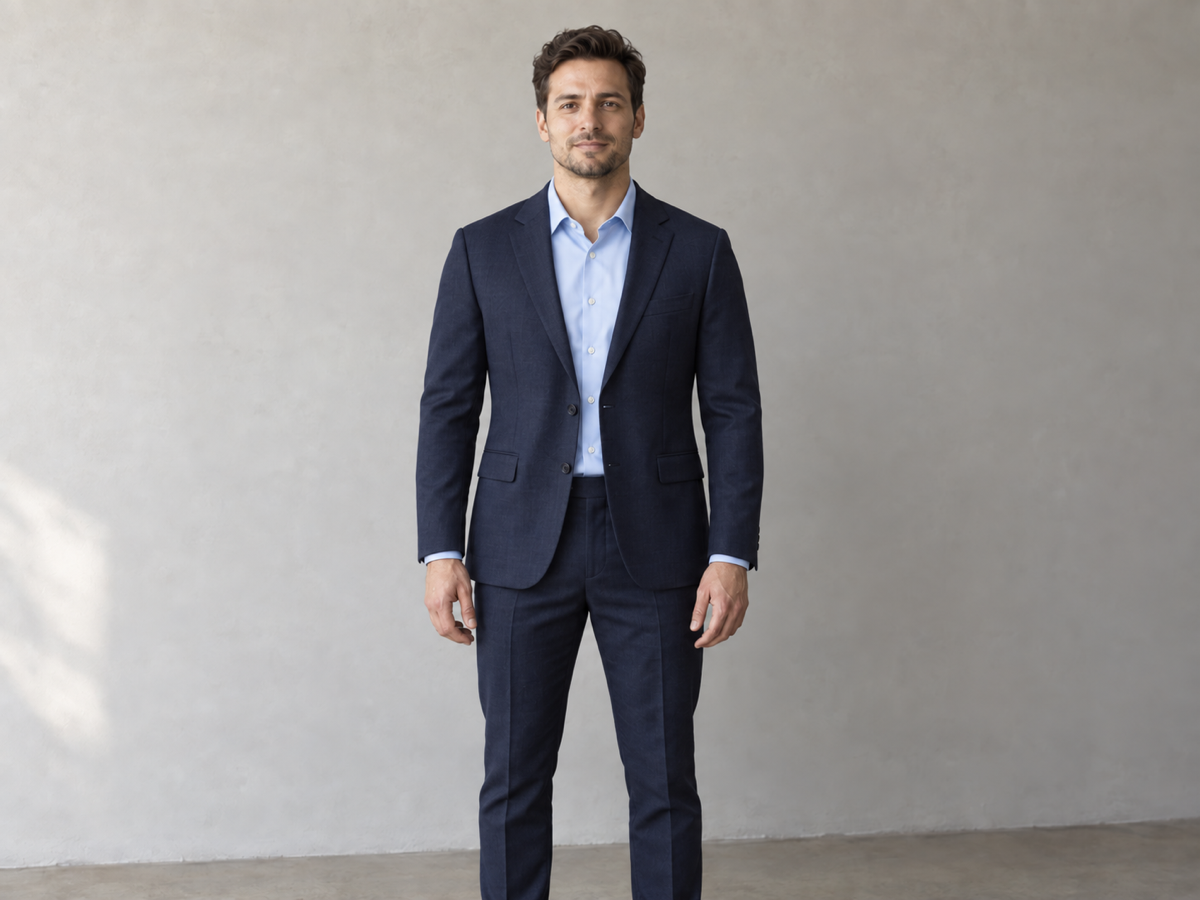
The same person in a tailored business blazer and collared shirt after the outfit change
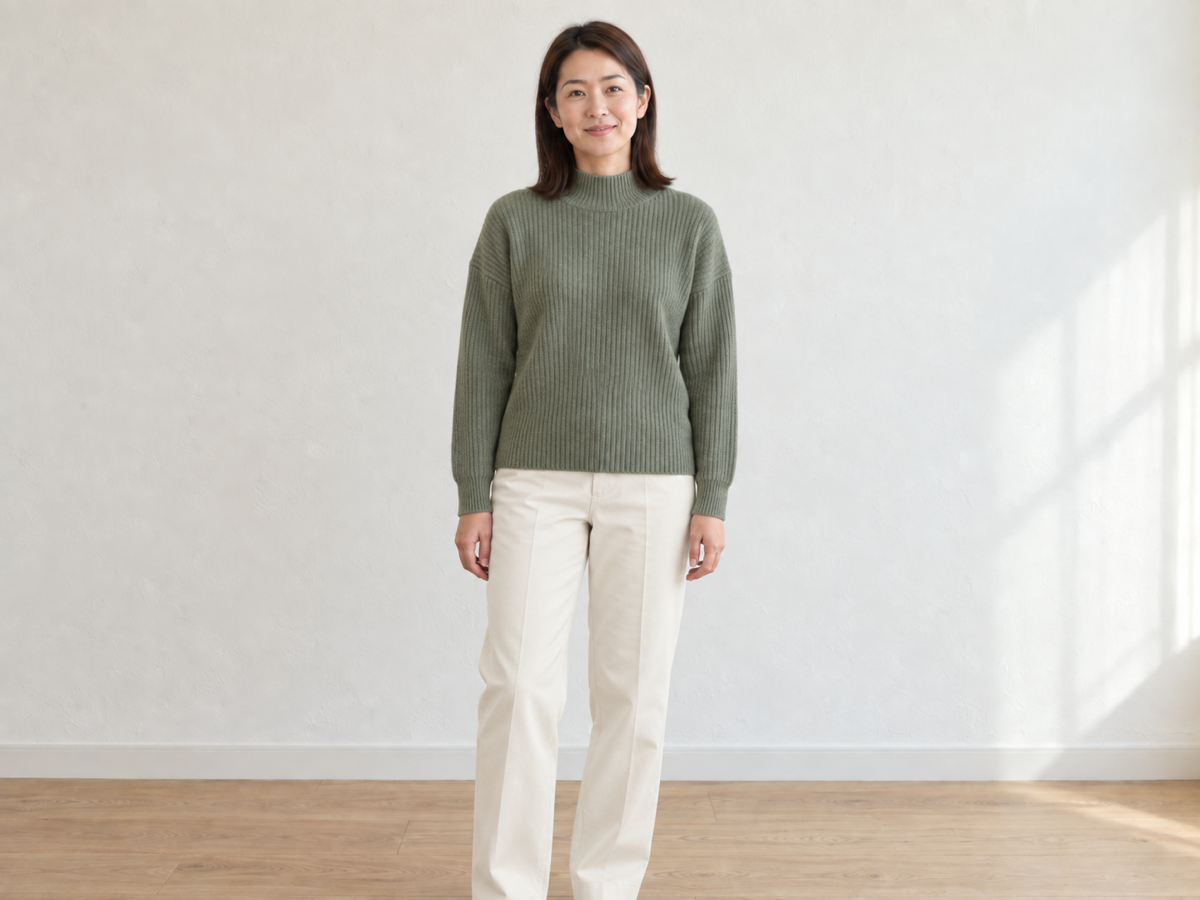
The same person in a renewed casual outfit with a different color and style after the change
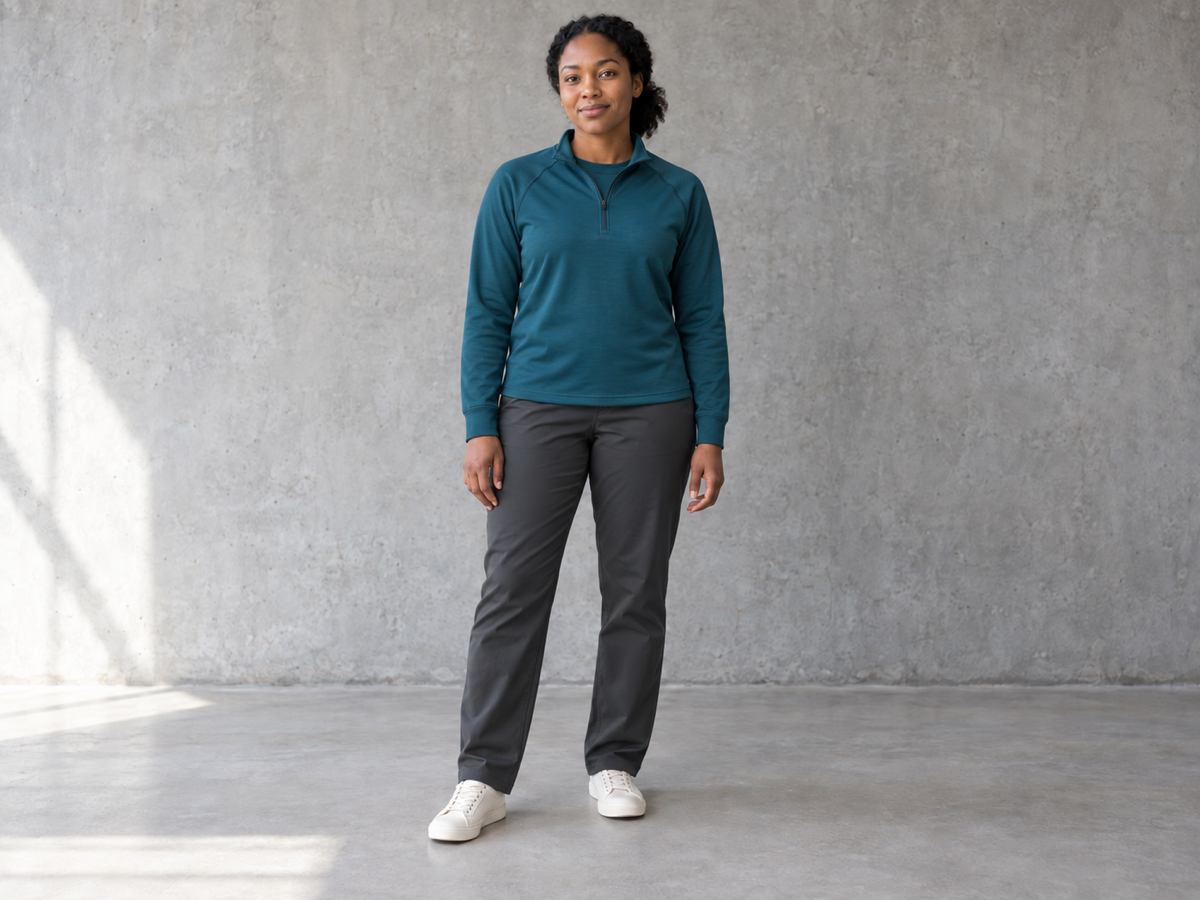
The same person in an athletic training set with the original stance preserved

Business, casual, and sport direction examples.

The direct answer

What does an AI clothes changer actually do?

An AI clothes changer is an image editor that replaces the clothing a person is wearing while leaving most of the photograph alone. It is not a body editor and not a virtual try-on of a specific product. The useful version keeps the same person, the same pose, and the same scene, then re-renders only the outfit: the cut, color, and general material of the new clothes.

IMG AI runs one guided pass over the whole frame. You choose a business, casual, or sport direction, optionally describe the clothing you have in mind, and the model returns the same person in a fully covering outfit. Because this is a generative edit, the result is a believable new outfit rather than an exact copy of a real garment. Treat it as an outfit direction, not a fabric or size guarantee.

Jobs this clothes changer is built for

Dress a casual photo for work

A photo you like is stuck in a t-shirt and jeans, but you need a business-ready version for a profile, a speaker page, or a job application. Redress the same photo into a blazer, collared shirt, and formal bottoms without booking a studio session or pushing the subject through a full headshot reshoot.

Refresh a wardrobe or color story

Reuse one good portrait for several contexts by changing the color and style of the clothes. A muted everyday look, a warmer palette, or a cleaner neutral outfit can each come from the same source frame, so a set of pages or posts stays visually consistent without new photography.

Preview an athletic or team look

If you need a sporty or team-style version of a photo, point the changer at a training set while keeping the stance, movement, and expression exactly as captured. It is a fast way to test a direction before a real kit, jersey, or uniform is produced.

How to change clothes in a photo online

  1. Upload one clear single-person photo

    Sign in, then add one JPG, PNG, or WebP up to 10 MB with each side between 256 and 4,096 pixels and no more than 16 megapixels. The file is checked in the browser and again on the server, so a mismatched or incomplete image is rejected before any credits are reserved.

  2. Pick a preset and describe the outfit

    Choose business, casual, or sport, then optionally add a short clothing note such as “navy blazer with a light blue shirt”. The preset and note change the instruction the model follows, not a fake slider, and the workbench shows the fixed 20-credit cost before you submit.

  3. Compare, then download or discard

    Drag the divider between the original photo and the new outfit. Check the face, hands, hair, and clothing coverage before you keep the result. If the connection drops or you refresh the tab, IMG AI recovers the same task identity instead of starting a second paid job.

Outfit directions

What a clothes change looks like

Three directions people ask for most: a casual photo redressed for business, a daily outfit recolored and restyled, and a sport set added while the pose stays fixed.

Person photographed indoors in a plain casual t-shirt and jeans before an outfit change
The same person in a tailored business blazer and collared shirt after the outfit change
New outfitOriginal

Casual top changed to a business jacket

The face, hair, room, and relaxed pose stay the same while the outfit moves to a structured blazer and collared shirt. Look for a natural shoulder line, fully covering clothes, and an unchanged background when you review a business change.

Business preset · 1K render · 20 credits

Person in an everyday muted everyday outfit before a casual color and style change
The same person in a renewed casual outfit with a different color and style after the change
New outfitOriginal

Daily outfit recolored and restyled

A casual change keeps the everyday feel while shifting the color and cut of the top and bottoms. Check that skin tone still looks natural and that the new palette sits believably in the original lighting, rather than looking pasted on.

Casual preset · optional color note · 1K render

Person standing in everyday clothes before being redressed in an athletic set
The same person in an athletic training set with the original stance preserved
New outfitOriginal

Sportswear added with the pose preserved

The athletic set is added without moving the stance or expression. For a sport change, confirm the body position, hands, and foot placement are unchanged and that the training clothes keep normal coverage through the movement.

Sport preset · pose preserved · 1K render

What this clothes changer actually does

The page exposes one guided outfit pass with a preset and an optional clothing note. There is no second reference-image upload, body reshaping panel, or batch queue because this backend does not expose them.

Same person, new outfit

One pass keeps identity, face geometry, expression, age, body shape, hair, pose, hands, background, crop, camera, and lighting, and replaces only the clothes. It is a wardrobe change rather than a full restyle or a new photoshoot.

Business, casual, and sport directions

Three presets cover the common asks, and an optional clothing note lets you name a color or garment. The note is a direction the model follows, so a precise brand fabric or an exact product match is not guaranteed.

Reviewable and recoverable output

The original and the new outfit sit in one comparison view, and the finished task stays in My Creations. A dropped connection or page refresh recovers the same paid run instead of charging twice.

Clothes changer vs headshot vs avatar vs background changer

Four related portrait tools look similar in a search box. Pick by what you want to change, not by the tool name.

The problemAI Clothes ChangerAI Headshot GeneratorAI Avatar GeneratorAI Background Changer
Best forChanging the outfit on an existing photoTurning a casual photo into a studio-style portraitCreating a stylized character portraitReplacing the scene around a person or product
What changesClothing only; person, pose, and scene stayLighting, framing, and wardrobe for a headshotOverall illustration or avatar styleBackground only; the subject stays
What it will not doReplicate an exact product or reshape the bodyMatch a real garment or keep the original sceneProduce a photorealistic unretouched lookChange clothing, pose, or the subject
Cost on IMG AI20 creditsSee the tool pageSee the tool pageSee the tool page

Photos that change well

The strongest inputs show one person, head to about knee or further, in even light, with the torso and arms clearly visible and not hidden by other people or heavy objects. A simple background, a clear stance, and clothing that is not blocked by crossed arms give the pass the most room to place a new outfit convincingly.

Limits you should know

  • This is a generative outfit change, not an exact garment replica. Fabric weave, stitching, logos, and precise color values are plausible interpretations, not a guarantee.
  • It does not reproduce a specific product from a reference image. There is no second-image try-on upload, so a named brand, jersey, or exact dress is out of scope.
  • It preserves the person and the pose; it does not slim, reshape, or retouch the body, and it will not change the background or relight the scene.
  • Clothing coverage stays normal. The tool is not built to remove clothing, expose skin, or create undressed or lingerie output, and such requests are refused.
  • Hands and fine details can shift. Check fingers, collars, hair over the shoulders, and jewelry edges, because a generative redraw can move small features even when the pose is preserved.
  • The output is re-rendered at a 1K-class size with the same framing, so pixel dimensions are normalized rather than matched to a large source file.

IMG AI vs Canva vs Fotor for changing clothes

These tools answer the same search in different ways: a tracked one-pass outfit changer inside an image account, a broad design editor with AI edit features, and an all-in-one photo editor with retouching tools. Public product pages were reviewed on 18 September 2026; confirm current plan terms on each vendor site before you commit.

IMG AI

One tracked outfit change inside the same account, credits, and history you already use for the rest of IMG AI.

Sign in, upload one single-person JPG, PNG, or WebP up to 10 MB, choose business, casual, or sport, add an optional clothing note, confirm 20 credits, run a single pass, drag the before/after comparison, and download. The run is recoverable and appears in My Creations.

No product-reference try-on, no body reshaping, and a 1K-class render rather than a full-resolution export.

Open the IMG AI tool

Canva

A design platform where AI image editing sits beside templates, layout tools, and a brand kit.

Canva markets AI image editing and generative tools inside its editor. The advertised flow is to open a design, select the photo, apply an AI edit, and keep working in the same canvas with text, shapes, and brand assets.

Clothes changing is one AI action in a much larger subscription product, access depends on the plan, and the output is aimed at design composition rather than a single clean portrait edit.

Fotor

An all-in-one online photo editor with retouch and AI tools in one workspace.

Fotor advertises AI photo editing and retouch features alongside its broader editor. The typical flow is upload, apply an AI edit or retouch, preview, and export, with manual controls available in the same product.

The free tier and export limits are plan-dependent, and an outfit change sits among many manual tools, so the credit or subscription model is not a single per-image price.

Also worth knowing: generic “AI outfit” and virtual try-on apps usually ask for a second product photo and are built to sell that specific garment, while fashion e-commerce try-on tools are tied to a brand catalog. IMG AI is the better fit when you already have a good photo of a person, want a plausible new outfit in one tracked pass, and would rather pay a fixed per-image credit than take on another subscription.

Privacy, rights, and responsible use

Upload only photos you own or are authorized to process. Changing someone's clothing in a photo can misrepresent a person or an event, so do not use this tool to deceive, and do not process another person's image without permission. IMG AI keeps the tracked task on your account and the result in My Creations. Read the privacy policy before uploading personal material.

File and credit specifications

Input
One person · JPG, PNG, WebP
Maximum file
10 MB
Side range
256–4,096 px
Maximum area
16 megapixels
Presets
Business, casual, sport
Clothing note
Optional · 240 characters
Output
One 1K-class image
Task cost
20 credits
History
My Creations

AI Clothes Changer FAQ

How do I change clothes in a photo online?

Sign in to IMG AI, upload one clear photo that shows a single person, choose a business, casual, or sport outfit direction, optionally add a short clothing note, and run one pass for 20 credits. You can then drag a before-and-after comparison, download the result, and find the finished task in My Creations.

Will the AI keep the same face and pose?

The pass is instructed to preserve identity, face geometry, expression, age, body shape, hair, pose, hands, background, crop, camera, and lighting, and to replace only the clothes. That said, a generative edit can still move small details such as fingers, collars, or stray hair, so always inspect the result before you use it.

Can I use a product photo to try on an exact garment?

No. This page changes the outfit from a text direction only and does not accept a second reference image, so it will not replicate a specific product, brand, jersey, or exact dress. If you need true virtual try-on of a real garment, this tool is not the right fit, and the page does not offer that upload.

Does it undress or change the body?

No. The tool keeps normal, fully covering clothes and is not built to remove clothing, expose skin, or produce lingerie or undressed output. Requests that attempt that are refused before any credits are reserved, and the pass does not slim, reshape, or retouch the body.

How many credits does one outfit change use?

Each pass costs 20 credits, shown next to your balance before you submit. A failed task refunds automatically, and a dropped connection or page refresh recovers the same task instead of charging twice. Current plans are listed on the IMG AI pricing page.

Which photo files and sizes are supported?

One JPG, PNG, or WebP file up to 10 MB, with each side between 256 and 4,096 pixels and no more than 16 megapixels in total. The image is validated in the browser and again on the server, so a mislabelled, oversized, or incomplete file is rejected before anything is charged.

Move to the workflow that matches what the photo actually needs.

Put a new outfit on the same photo

Upload one clear photo, choose a business, casual, or sport direction, and compare the original against the new outfit before you download it.

Open the clothes changer